
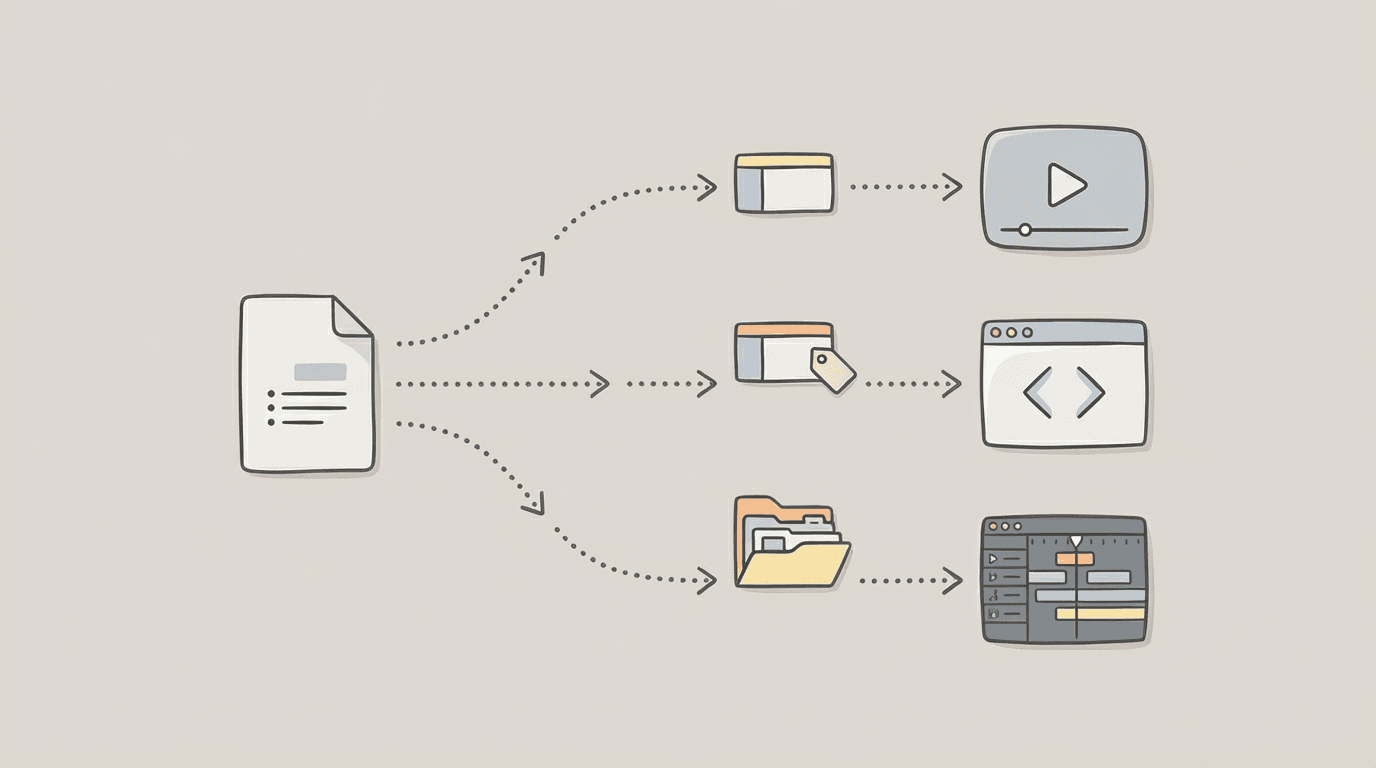
Subtitles don’t just make your video accessible — they make it professional.
But if you’ve ever exported captions, you’ve probably seen a list of mysterious file types:.srt,.vtt,.xml… what’s the difference?
If you’re editing videos for YouTube, TikTok, or Final Cut, choosing the right subtitle format can save you hours of frustration.
Each format serves a slightly different purpose — and once you understand how they work, exporting captions becomes effortless.
Let’s break down the three most common formats every creator should know.
🎬 What Are Caption Files, Really?
A caption file is a text document that includes two types of information:
The spoken text — what’s being said.
The timing data — when each line should appear and disappear.
The combination of those two lets video players, social platforms, and editing software display your subtitles in sync with the audio.
But not all caption formats are created equal.
🧾 1. SRT — The Universal Standard
File type: .srt
Best for: YouTube, Facebook, TikTok, Vimeo, and most editing tools
SRT (SubRip Subtitle) is the most widely supported caption format in the world.
It’s simple, lightweight, and works with nearly every platform.
Structure example:
1
00:00:02,000 –> 00:00:05,000
This is an example caption.

2
00:00:05,500 –> 00:00:08,000
Each line has a number, timestamp, and text.
Each block includes:
A sequential index
A start and end timestamp (
hh:mm:ss,ms)The caption text
Why use it:
✅ Universal compatibility
✅ Lightweight and editable in any text editor
⚠️ Limited styling (no bold, colors, or positioning)
💡 Tip: If you just need clean captions for YouTube or TikTok,
.srtis your go-to.
🌐 2. VTT — The Web’s Subtitle Language
File type: .vtt (WebVTT)
Best for: Web players, HTML5, or interactive video platforms
VTT is the modern, web-native upgrade to SRT.
It adds support for styling, positioning, and even metadata — perfect for online players.
Structure example:
WEBVTT

00:00:02.000 –> 00:00:05.000
 This is an example WebVTT caption.

00:00:05.500 –> 00:00:08.000 align:start position:10%
 WebVTT supports formatting and layout.
Why use it:
✅ Supports speaker tags, alignment, and styling
✅ Ideal for interactive or branded web video
⚠️ Not always compatible with offline editors
💡 Tip: Use
.vttfor online players or if your website hosts embedded videos with subtitles.
🎞️ 3. XML — For the Editing Suite
File type: .xml
Best for: Final Cut Pro, Premiere Pro, and broadcast workflows
XML captions are structured data files that editing software can import directly.
They don’t just show text — they preserve timeline markers, roles, and metadata that editors can modify inside their NLE (Non-Linear Editor).
Why use it:
✅ Keeps subtitles synced with video tracks
✅ Editable inside Final Cut or Premiere
✅ Stores speaker names, timing, and visual markers
⚠️ Larger file size, less human-readable
Example use:
When you export an XML caption file, it integrates seamlessly into your timeline — letting you adjust fonts, placements, and styles natively within the editor.
💡 Tip: Choose
.xmlwhen your goal is post-production flexibility, not just playback.
🧰 Quick Comparison Table
FormatBest ForEditable InSupports StylingCompatibilitySRTUniversal / Social MediaAny text editor❌★★★★★VTTWeb Players / HTML5Code editors✅★★★★☆XMLFinal Cut / PremiereNLE Software✅★★★☆☆
⚡ Exporting Made Easy with AI Tools
Modern AI transcription platforms (like ours) automatically generate all three formats.
You can:
Transcribe any video or audio
Edit captions interactively
Export SRT, VTT, or XML with one click
No manual conversion, no plugins — just precision.
🪶 Final Thoughts
Understanding caption formats is like understanding file types for design — once you know the difference, you can work faster and smarter.
Whether you’re publishing on YouTube, embedding on your website, or editing in Final Cut —
choose the right format, and your subtitles will always sync perfectly.
Upload your video, transcribe, and export captions in any format — SRT, VTT, or XML — all in one place. Make your subtitles look as good as your story.